Documentation
Meet your page-aware study partner
Set up OKAI Study to help you study, understand quizzes, explore research, and ask questions about the page in front of you.
Quick visual guide
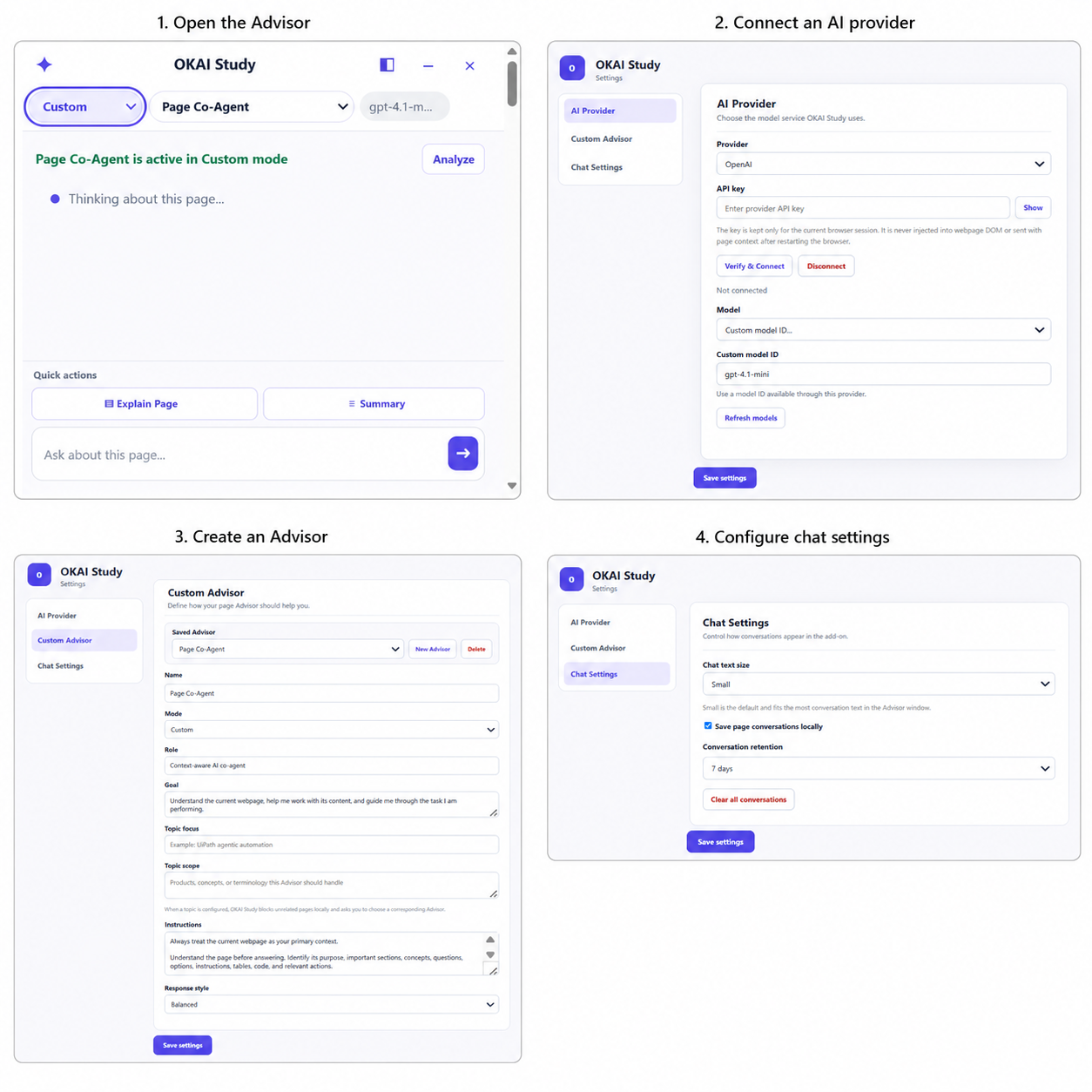
Open the Advisor, connect your preferred AI provider, create a focused Advisor, and choose how conversations are displayed and retained.
Install the extension
Choose the Chrome Web Store for the normal installation experience. Use the local package only for testing or an approved early release.
Install from the Chrome Web Store
- Open the official OKAI Study listing in the Chrome Web Store.
- Select Add to Chrome and confirm the requested permissions.
- Open the browser extensions menu and pin OKAI Study.
Store installations are signed by the Chrome Web Store and receive extension updates automatically.
Store link coming with the public releaseInstall a compiled release package
- Download the official extension ZIP above.
- Extract the ZIP into a permanent folder. Do not select the ZIP itself.
- Open
chrome://extensionsoredge://extensions. - Enable Developer mode.
- Select Load unpacked.
- Choose the extracted folder that directly contains
manifest.json. - Pin OKAI Study from the browser extensions menu.
The download contains compiled extension files, not the TypeScript project or repository. It is an extension package, not a Windows or macOS installer. Keep the extracted folder in place and install updates manually.
This package is published through the OKAI Study website with a SHA-256 checksum. Compare the downloaded file's checksum before installing it. Version shown: 0.2.0.
Connect an AI provider and add your API key
OKAI Study uses the AI provider you choose. You need an API key from that provider before the advisor can generate responses.
Create a key from your OpenAI developer platform account.
Create a key from your Anthropic Console account.
Create a Gemini API key from Google AI Studio.
Use an API key, model ID, and base URL from an OpenAI-compatible service.
Add the key to OKAI Study
- Open the OKAI Study extension and select the Settings icon.
- Open AI Provider from the settings menu.
- Select your provider.
- Paste the API key into the API key field.
- For a custom provider, also enter its API base URL.
- Select Verify connection. OKAI Study will load the available models if the connection succeeds.
- Select a text model and save the settings.
Never publish an API key, add it to screenshots, or paste it into a webpage or chat. Enter it only in the OKAI Study settings page. OKAI Study keeps the key only for the current browser session, so you must reconnect after restarting the browser. If a key is exposed, revoke it through the provider and create a new one.
API access and chatbot subscriptions are normally billed separately. A paid ChatGPT, Claude, or Gemini subscription does not necessarily include API credits. Check the selected provider's pricing and usage limits.
Create a focused advisor
Choose Quiz for question-focused assistance or Custom for documentation, articles, and research. Give the advisor a clear topic and concise instructions.
Name: Biology Learning Coach
Role: Explain biology concepts clearly
Topic: Introductory biology and exam preparation
Style: Concise
Use OKAI Study on a page
- Open the learning or documentation page.
- Select the appropriate mode and advisor.
- Press Analyze.
- Choose a quick action or ask a specific question.
For quizzes, start with Hint, use Explain to understand the choices, and reveal Solution only when you need to verify your reasoning.
Troubleshooting
OKAI Study cannot access the page
Browser-internal pages, extension stores, and some protected pages do not permit content scripts. Try a normal HTTP or HTTPS webpage.
The provider returns an error
Verify the API key, billing status, model name and, when using a custom provider, the base URL.
Quiz mode rejects the page
OKAI Study requires both answer-like controls and nearby question wording. Switch to Custom mode for documentation and normal articles.